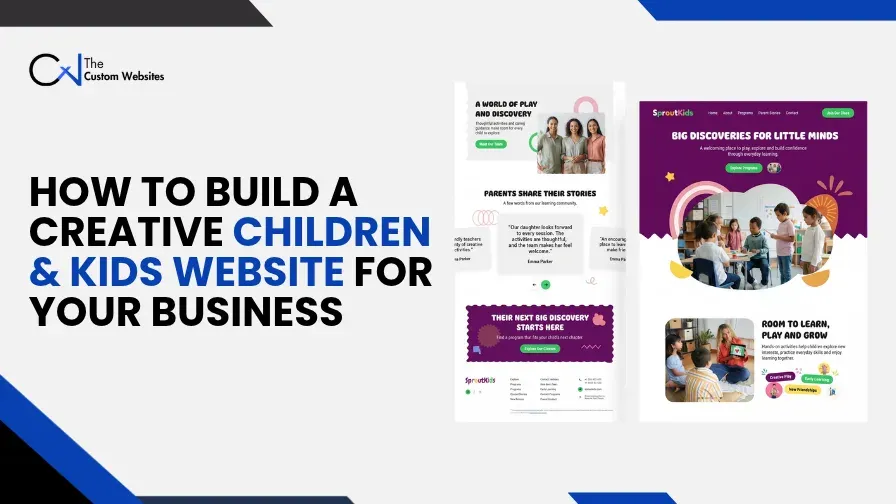
A professional kids website should explain what your business offers. It should help parents find answers and give children a clear way to explore. Children & Kids Website Design and Development brings these needs together. It combines playful visuals, useful content and features families can use.
Your website should also support your staff. They may need to update class schedules, manage bookings or add new products. Plan those routine tasks as carefully as you plan the pages families see.
Each business needs a different setup. A preschool may need tour booking and enrollment forms. A toy brand may need product filters and checkout. A learning platform may need interactive lessons and progress tracking.
This guide covers the full children & kids website development process. It explains how to plan your pages, choose a platform, build key features and test the site before launch.
What Makes a Children’s Business Website Professional?
A professional website makes your offer easy to understand. Parents should quickly see what you provide, which ages you serve and how to book, register or buy.
If children use the site, give them instructions they can follow. Use readable text, familiar controls and clear feedback. For example, a young reader should be able to find the button that plays a story and pause it when needed.
The website also needs to work for your team. A camp manager should be able to change session dates. A daycare coordinator should be able to review tour requests. A store manager should be able to update sizes and stock.
Children Website Design and Development Explained
Website design covers what families see and how they move through the site. It includes branding, typography, navigation and page layouts.
Website development makes those plans work. Developers build pages, configure the CMS and connect features such as registration forms and payment gateways.
Website design |
Website development |
Plans the visual style and page layouts |
Turns designs into working website pages |
Defines menus, labels and page flow |
Builds navigation for phones, tablets and desktops |
Designs the tour or class booking form |
Checks submissions and sends confirmation emails |
Plans how products and filters appear |
Connects the catalog to inventory and checkout |
Shows how a lesson or activity should behave |
Builds the interactive elements and saves progress where needed |
Plan both parts together. A designer can show how a class booking form should look. The developer also needs to know when to reserve a place, what to do if the class fills up and what details to send in the confirmation.
1. Define Your Children & Kids Website Development Goals
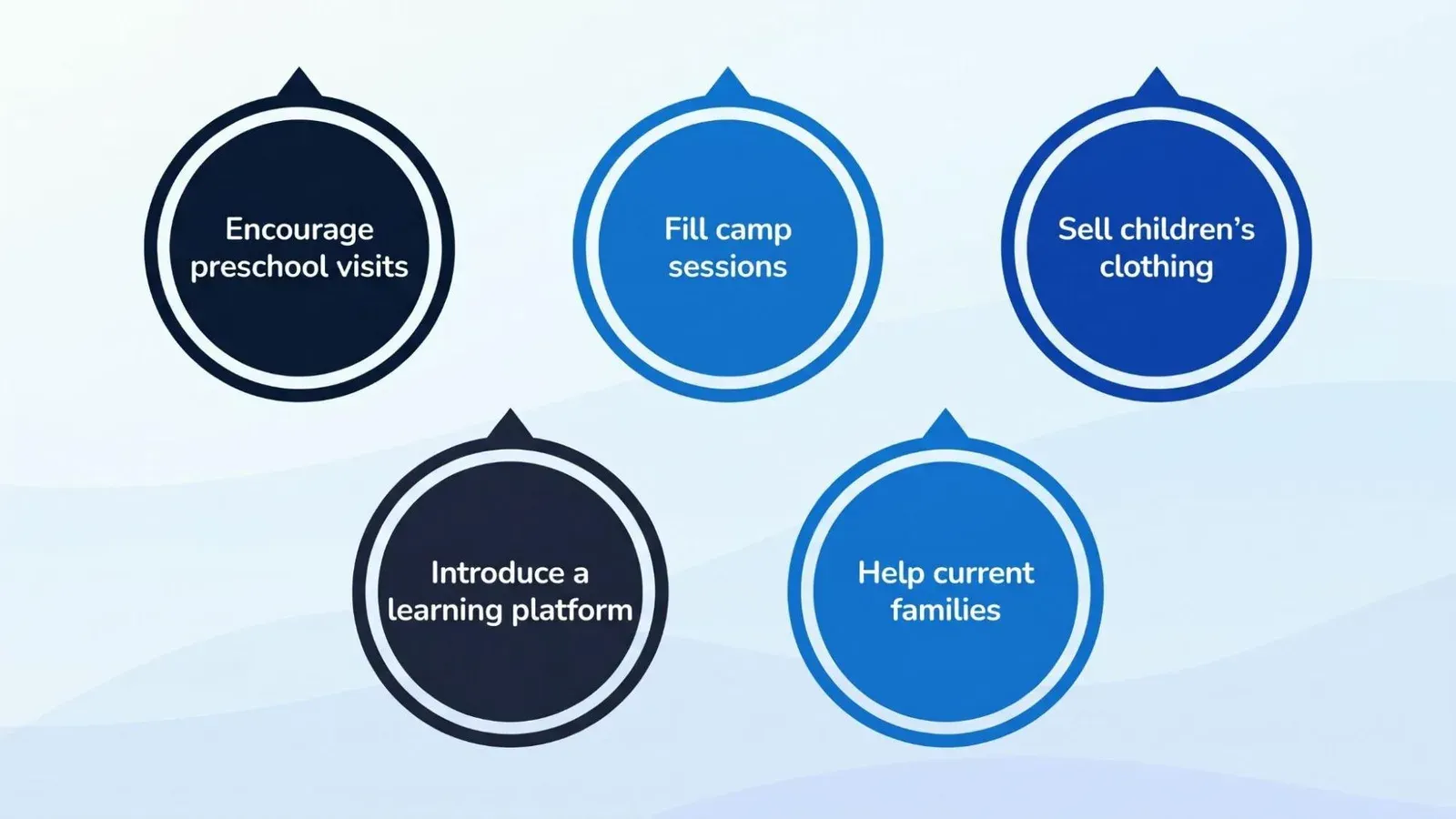
Start with the main action your website should support. Choose a goal that matches the way families use your business.
Business goal |
Website requirement |
Useful outcome |
Encourage preschool visits |
Program pages and tour booking |
Confirmed tours |
Fill camp sessions |
Schedules, age filters and registration |
Completed registrations |
Sell children’s clothing |
Product filters, size guides and checkout |
Completed orders |
Introduce a learning platform |
Sample lessons and sign-up options |
Started trials |
Help current families |
Schedules, resources or account access |
Fewer routine support requests |
Identify who takes each action. A child may try a sample activity. A parent may choose a plan and pay. A teacher may request a quote for classroom materials. Give each audience the information it needs at the right point.
2. Research Competitors Before Planning Your Kids Business Website Design
Review websites that serve a similar audience. Follow a real task on each one. Try to find a class for a six-year-old, compare two summer camps or choose the right size for a jacket.
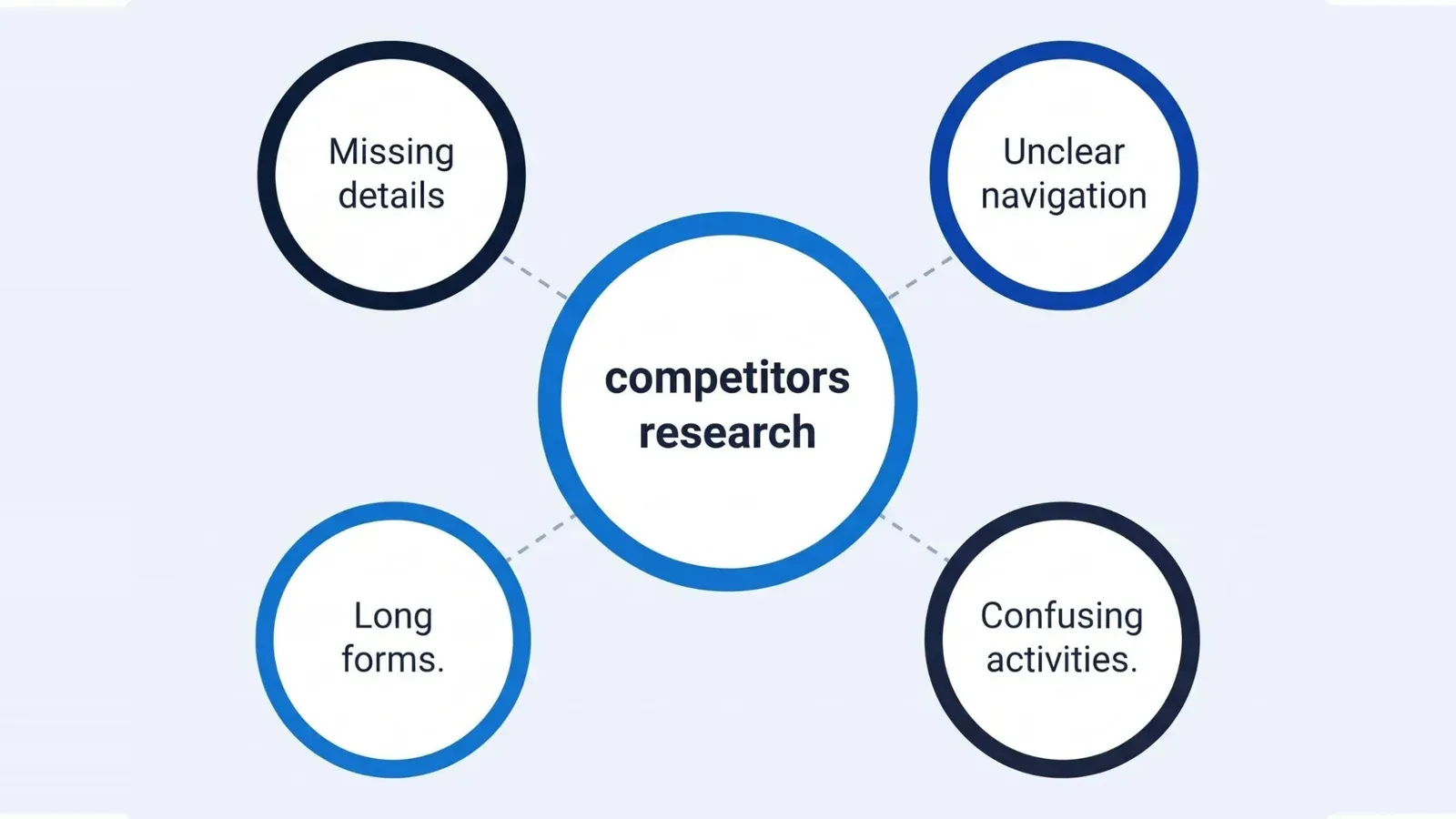
Look for gaps you can address:
Missing details. Can parents find prices, age ranges and availability before starting registration?
Unclear navigation. Can shoppers browse by size or age without opening every product?
Long forms. Which fields could wait until a family decides to enroll?
Confusing activities. Do children know how to start, pause or repeat an activity?
Check your own emails and phone inquiries too. If parents regularly ask whether beginners can join, answer that question on the class page.
3. Plan the Structure of Your Children’s Business Website
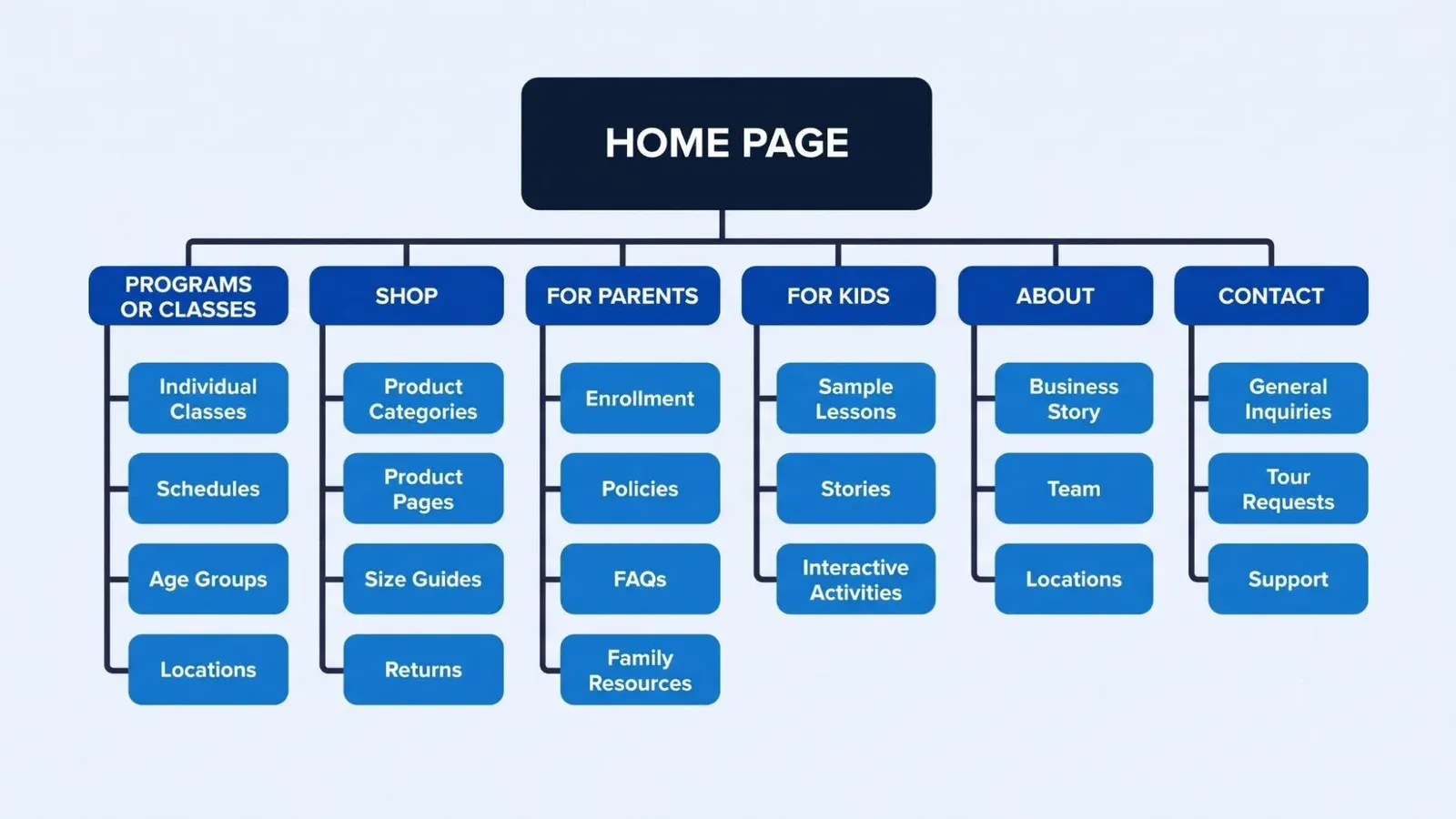
Create a sitemap before designing individual pages. A sitemap lists the pages you need and shows how they connect.
Main section |
Supporting pages |
Programs or classes |
Individual classes, schedules, age groups and locations |
Shop |
Product categories, product pages, size guides and returns |
For Parents |
Enrollment, policies, FAQs and family resources |
For Kids |
Sample lessons, stories or interactive activities |
About |
Business story, team and locations |
Contact |
General inquiries, tour requests and support |
Use this structure for children’s business website development when different visitors need different routes. For instance, a parent can go straight to enrollment details while a child opens a sample story from the homepage.
Give each page a clear purpose. A class schedule shows what is available. A class detail page helps a parent decide whether the session is right for their child.
4. Prepare Content Before Designing Your Kids Website
List the questions each page needs to answer. Then gather the content, photos and documents that support those answers.
For a camp page, collect session dates, hours, fees and age ranges. Include a sample daily schedule, what to bring and how pickup works. For a product page, collect sizes, materials, care instructions and clear photos.
Use a short brief for each page:
Who will use the page?
What questions should it answer?
Which keyword and related terms fit the topic?
What images or examples will help?
What should visitors do next?
Who will approve and update the page?
Use approved images and testimonials. Confirm permission before publishing identifiable photos of children. Give staff a way to tell which images are approved for public use.
5. Choose a Platform for Custom Kids Website Development
Choose a platform around what families and staff need to do. A local children’s activity studio may need editable program pages and an existing booking tool. A retailer may need a store platform that supports product variants and order management.
Custom kids website development is useful when your requirements include workflows such as family accounts, private learning dashboards or registration across several locations. Identify those needs early so you can compare platforms on the same requirements.
Ask these questions before choosing:
Can staff update dates, prices and products?
Does the platform support the booking or payment tools you need?
Can you export records your team depends on?
Who manages hosting, updates and backups?
What ongoing subscriptions will you pay for?
Who controls the domain and connected accounts?
Custom website development for kids businesses may use a CMS for public pages and custom features for specific tasks. For example, an editor could manage camp descriptions in the CMS while a registration tool handles availability and payments.
6. Create a Visual Style for Creative Children’s Website Design
Choose a visual direction that reflects your business. A preschool might use simple illustrations and photos of its classrooms. A science camp could use diagrams and photos from approved projects. A children’s clothing brand might focus on how pieces look together.
Define your colors, fonts, buttons and image style before creating every page. A short style guide helps future editors keep the site consistent when they add products or programs.
Children’s website design services may also include illustrations or animation. Give each visual a role. An illustration can help a child identify a reading category. A short animation can show a parent how a toy fits together.
7. Plan UI and UX for a Child-Friendly Website
User interface design, or UI, covers the controls visitors see. User experience design, or UX, covers how visitors use those controls to complete a task.
Start with wireframes. These simple layouts show where menus, headings, buttons and forms will appear. Review key pages before adding polished artwork.
In custom child-friendly website design, the interface should suit the children who will use it. Early readers may benefit from short labels and optional audio instructions. Older children may want to browse by topic or return to their last lesson.
Map the parent’s experience too. A parent viewing a dance program should be able to check the age group, see the schedule and book a trial without losing their place.
8. Build a Homepage That Explains Your Kids Business
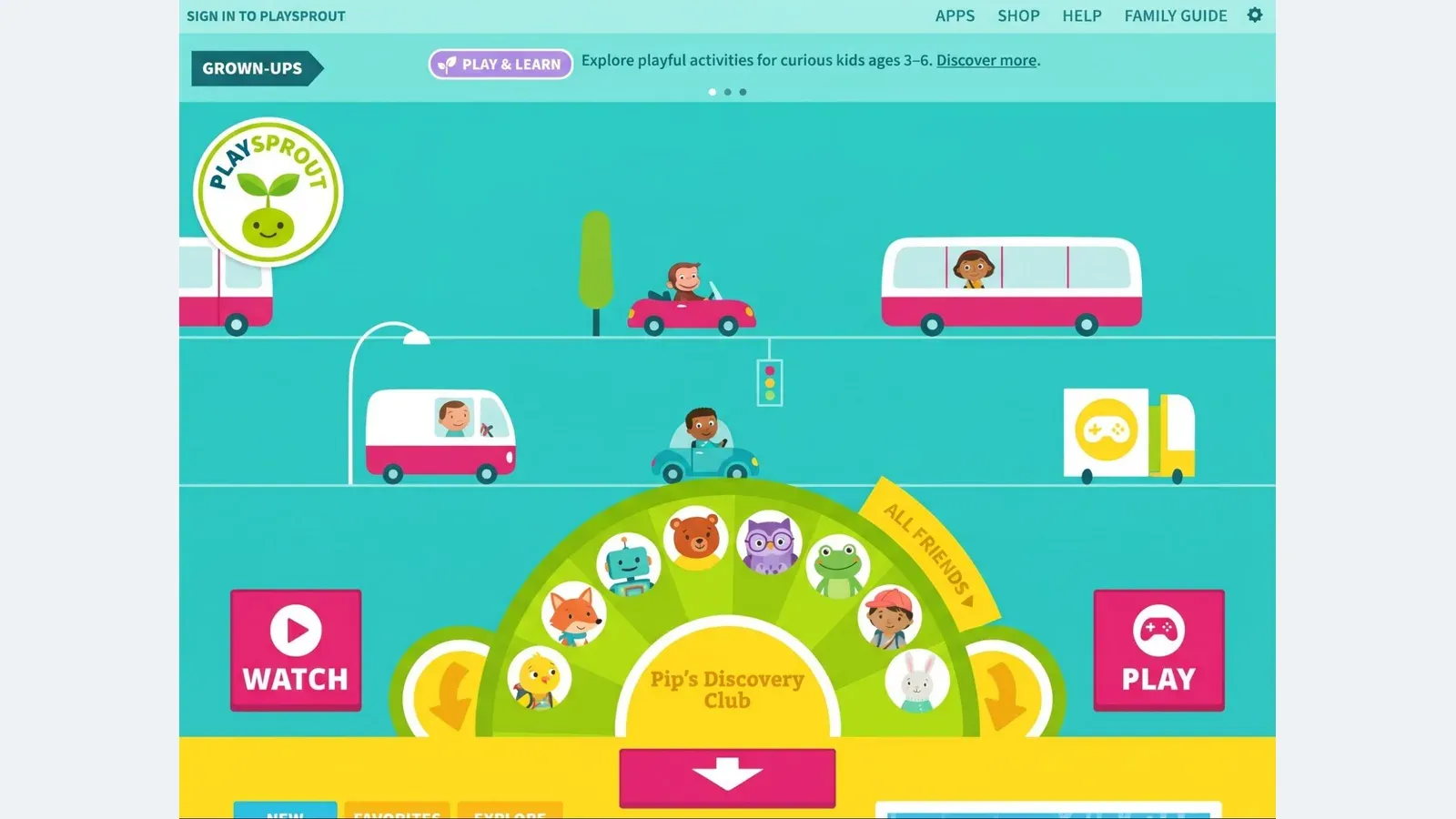
Open with what you offer and who it serves. For example, After-School Art Classes for Ages 6 to 12 tells parents what the program is and whether it fits their child.
Pair the headline with an action such as See Class Times, Book a Tour or Shop by Age. Use the rest of the homepage to guide families toward relevant pages.
A useful homepage can include:
Your main programs or product categories.
The ages or skill levels you serve.
Locations for in-person services.
Approved photos or examples of your work.
A short explanation of how to get started.
Answers to the questions families ask most often.
Put current information where visitors can find it. If summer registration has opened, link to the available sessions from the homepage.
9. Build Pages for Your Type of Children’s Business
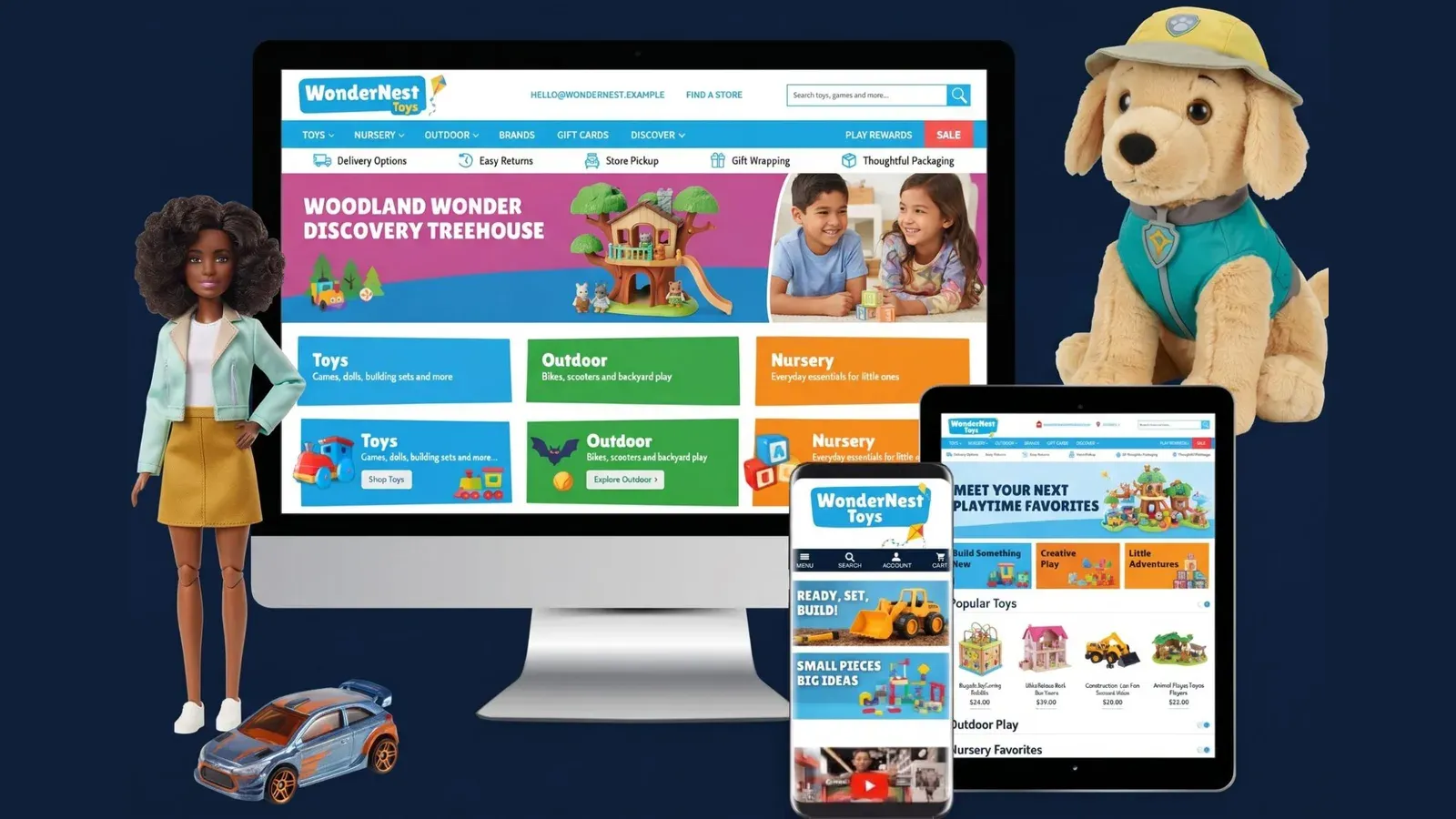
Use page templates that reflect how families make decisions. A preschool tour page needs different information from an online lesson or a toy product page.
Childcare Website Development for Preschools and Daycares
Create pages around age groups, locations and enrollment. Explain your hours, what a typical day looks like and how families can arrange a visit.
For childcare business website design, tour booking is a useful place to start. Show available times and the center address. Send a confirmation with arrival instructions and a way to reschedule.
Kids Activity Website Development for Camps and Classes
Give each program page a consistent layout. Show dates, age requirements, skill level, price and availability. Tell families what to bring and whether they need to attend every session.
A weekly class and a one-day workshop may need different booking options. Make the commitment clear before payment.
Educational Website Development for Children
Organize learning pages around subjects, reading levels or skills. Explain what each lesson covers and let families preview a real activity.
For children’s online platform development, decide what learners can view without an account. Then define what an account adds, such as saved progress, access to paid lessons or a dashboard for parents.
Custom Websites for Children’s Brands
Build category and product pages around the details parents compare. A clothing brand may need a size chart and fit notes. A toy brand may need age recommendations, dimensions and a list of what comes in the box.
Use product photos that answer practical questions. A close-up can show fabric texture. A photo of an assembled craft kit can show what children will make.
10. Add Interactive Kids Website Development Features With a Purpose
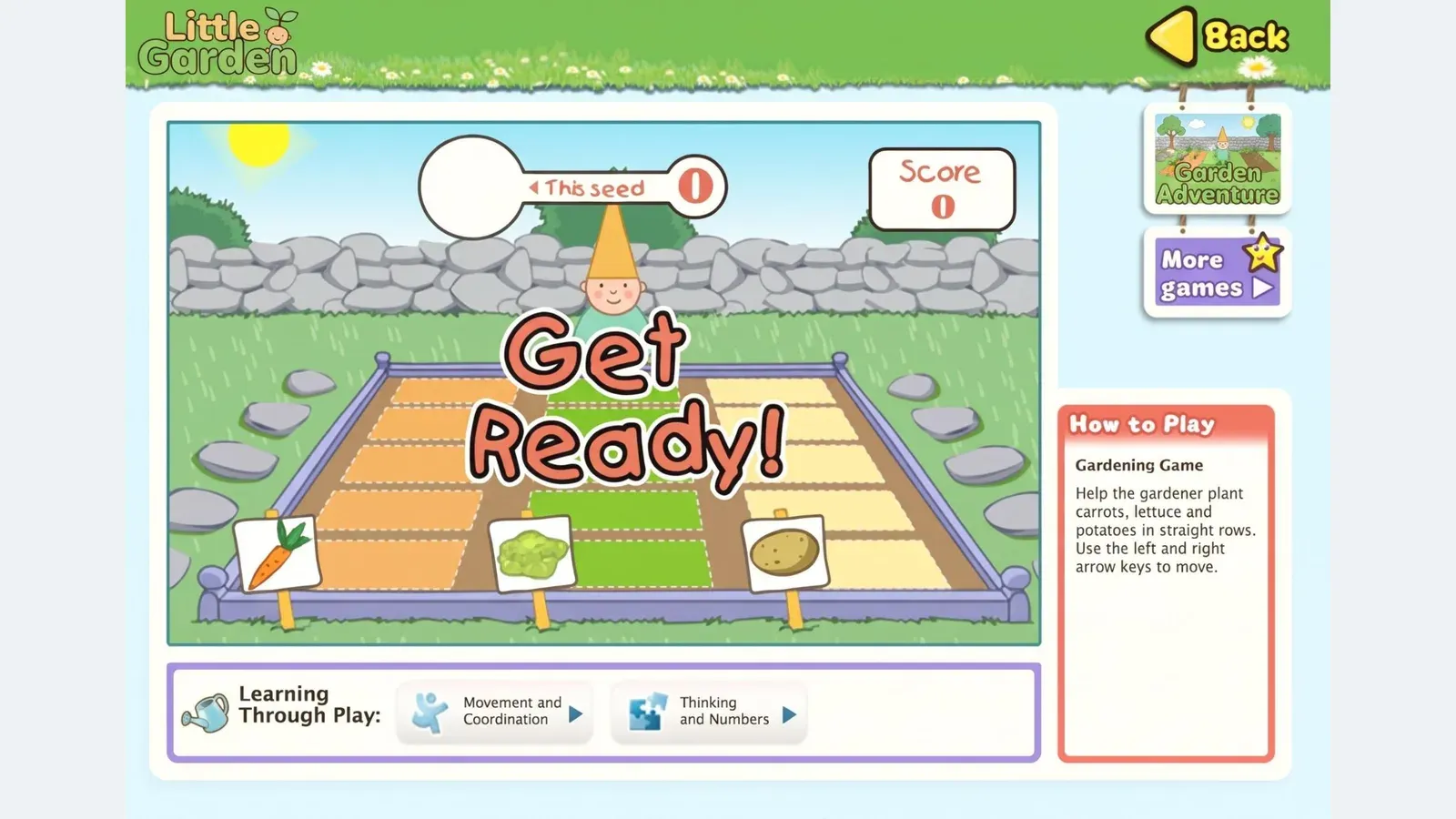
Choose interactive elements that support a task. A music school can let children hear the difference between instruments. A reading site can offer a story with narration. A craft brand can let visitors open each step of a sample project.
Write instructions that explain what to do in one or two short sentences. Give children clear feedback after each choice. Let them restart an activity without having to reload the whole page.
Use animations to explain movement or show progress. Keep controls visible. If your activity uses drag and drop, provide a way to complete it by tapping or selecting items with the keyboard.
11. Build Frontend Components and Responsive Kids Website Layouts
Frontend development turns approved designs into pages and controls people can use. Build reusable components for class cards, product tiles, schedules, forms and lesson controls.
Responsive kids website development also covers how those components behave across devices. On a phone, a timetable may be easier to read as a list grouped by day. On a tablet, an activity needs enough space for touch controls and instructions.
Test with real content. Long class names, detailed size options and sold-out messages can expose layout problems. Check that important controls remain visible and usable when the content changes.
12. Configure the CMS and Backend Workflows
Backend development handles processes such as saving registrations, checking inventory and managing account access. Connect these processes to the pages and forms families use.
Set up the content management system around staff tasks. A program coordinator may need to edit class dates and prices. A store manager may need to update product details. An editor may need to review pages before publication.
Use fields for information that appears often. For example, separate fields for age range, session dates and price let staff update a class without editing its full description. A reusable template places those details in the same spot on every program page.
13. Develop Booking Systems and Registration Forms
Start with the shortest form that supports the task. A preschool tour may require a parent’s name, contact details and preferred time. Full enrollment may involve more information and a separate process.
A class booking system should check capacity before confirming a reservation. Define what happens when two families try to reserve the last place. If you offer a waitlist, explain how families will hear about openings.
Confirm successful registrations on screen and by email. Include the session date, location and any preparation instructions. If something goes wrong, explain whether the booking went through and how the parent can continue.
14. Build Checkout With Kids E-commerce Website Development
Set up product variants, inventory and payments around your catalog. A clothing store may track stock by size and color. A toy store may track individual items and bundles.
Help parents compare items before checkout. Show delivery estimates, return terms and any product restrictions where shoppers need them. Offer guest checkout if an account serves no clear purpose for the purchase.
Test the full order process. Place a test order, check the confirmation and verify that inventory updates. Then try a failed payment, an unavailable size and a refund. Staff should know where to review or resolve each issue.
15. Connect Booking, Payment and Email Tools
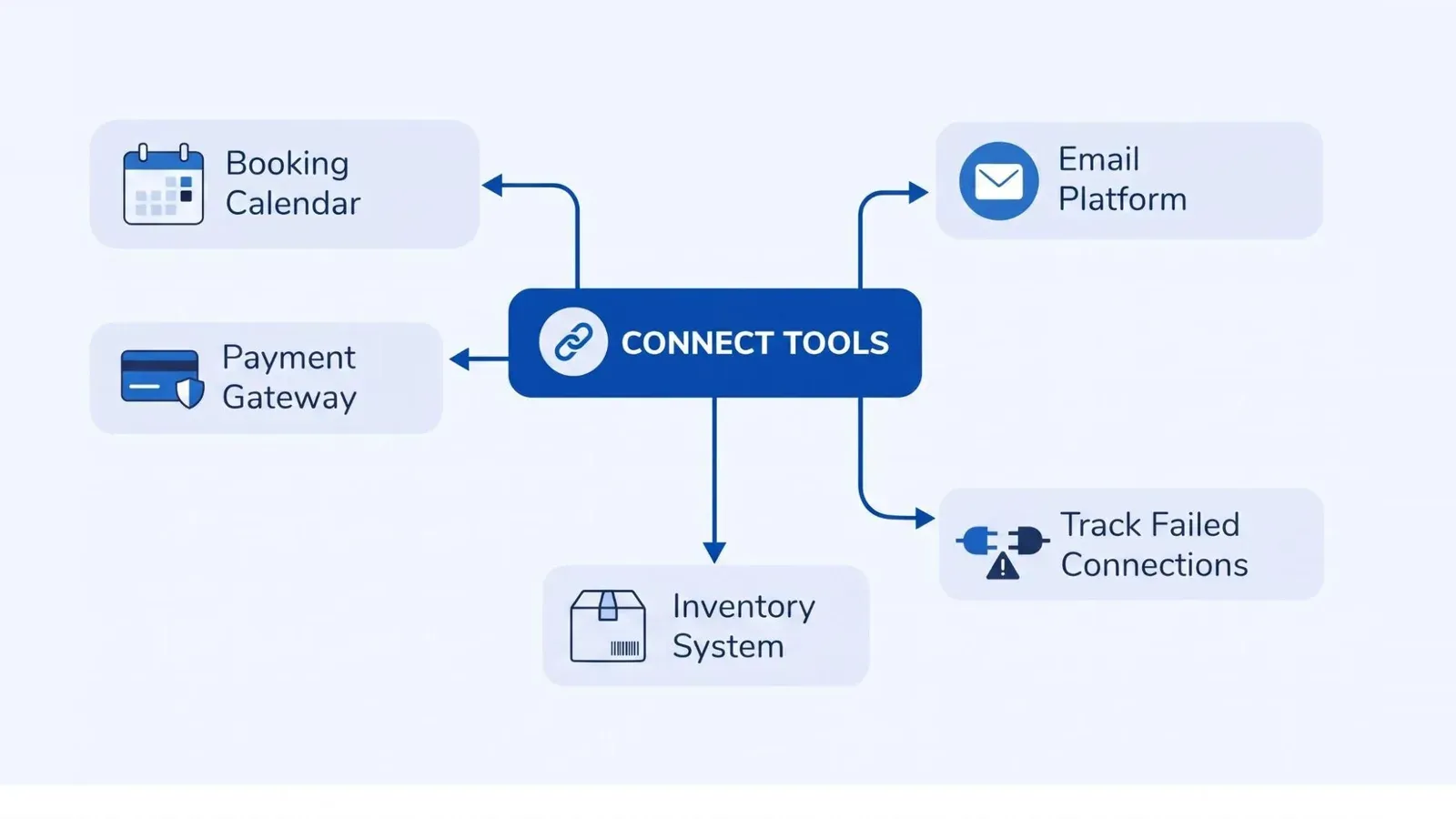
List the tools your team already uses. These may include a booking calendar, email platform, payment gateway or inventory system. Check which ones your website needs to connect to.
Define how information moves between tools. A camp registration may need to update attendance records, send a confirmation and record the payment. A tour request may only need to reserve a time and notify the front desk.
Plan for failed connections. If someone pays and their registration does not reach the class roster, staff need a way to find the transaction and confirm the booking. Assign someone to review these errors.
16. Track Bookings, Sales and Other Useful Actions
Start with a business question. A camp might want to know where parents leave the registration process. A store might want to see whether people use its size guide before buying.
Track completed actions such as confirmed tours, paid registrations and purchases. Keep button clicks and form starts as separate measurements. This shows where visitors begin a task and where they finish it.
Review reports alongside staff feedback. If parents still call about a session after visiting its page, check whether the location, dates or age requirements are easy to find. Keep names and sensitive form details out of analytics reports.
17. Build Technical SEO Into Your Kids Website
Give each public page a clear topic, descriptive URL and relevant page title. A page for beginner art classes should describe that program and link to its schedule or booking page.
Set up editable meta titles and descriptions in the CMS. Add internal links between pages that answer related questions. For example, a guide to choosing a summer camp can link to your camp schedule and registration information.
Review these items before launch:
XML sitemap and search indexing settings.
Redirects for important pages that moved.
Broken links and missing pages.
Canonical URLs for pages with duplicate versions.
Accurate structured data where it fits the page.
Use keyword variations where they match the subject. Childcare website development fits a section on tour booking and enrollment. Kids e-commerce website development fits a section on catalogs, inventory and checkout.
18. Improve Page Speed and Accessibility
Check how important pages load on a mobile connection. Resize large images, reduce unnecessary scripts and play videos when visitors choose to start them. Prioritize pages that families need to complete a task, including schedules, product pages and checkout.
Build accessible design into the same review. Use clear form labels, readable text contrast and visible keyboard focus. Add text alternatives for meaningful images. Check that visitors can use menus, forms and interactive elements without a mouse.
Combine automated checks with manual testing. Try to complete a booking using only the keyboard. Review a lesson on a tablet. Check whether an error message tells the visitor what to fix.
19. Plan Security and Privacy for Children-Focused Web Development
List the information your website collects through forms, accounts and third-party tools. Record why each item is needed, who can see it and when you can delete it.
Use HTTPS for secure forms. Limit access to records based on staff responsibilities. Keep the site and connected software up to date. Make sure someone owns backup and recovery tasks.
In the United States, the Children’s Online Privacy Protection Act (COPPA) can apply to operators of sites directed to children under 13 that collect personal information. It can also apply to general audience services that have actual knowledge they collect personal information from children under 13. Covered operators generally need to notify parents and obtain verifiable parental consent before collecting that information, subject to limited exceptions. Review analytics, embeds and other third-party tools as part of the assessment.
20. Add Family Accounts and Online Portals Where They Help
Use accounts when families have a reason to return and manage something. A parent portal can show bookings, receipts or approved downloads. A learning account can save lesson progress and display completed activities.
Define access before building the portal. Parents may manage billing and permissions. Children may open lessons. Instructors may view the class rosters they need for their work.
Plan account recovery, cancellation and changes in access. If a family moves a child to a new class, check that its portal shows the correct schedule and that both instructors see current rosters.
21. Test, Launch and Maintain Your Children’s Website
Test complete tasks before launch. Ask staff to edit a class, review a registration and update a product. Follow each change through to the public website.
Test common failures too. Try a full session, a payment decline and a missing form field. Check that the messages explain what happened and give families a clear next step.
If you are replacing an old site, review the content and prepare redirects from important URLs. After launch, repeat key checks on the live site. Assign owners for CMS updates, bookings, security and third-party integrations.
Professional kids website development includes planning for seasonal changes. Set time aside to update schedules before enrollment opens and remove expired offers as soon as they end.
What Affects Children & Kids Website Development Cost?
Cost depends on the pages, content and features you need. A brochure site for one preschool location has a different scope from a learning platform with private accounts and interactive lessons.
These items can affect the estimate:
Cost factor |
What to discuss |
Page design |
Number of layouts and amount of custom illustration |
Content |
Who writes, photographs and reviews the material |
Business features |
Booking, registration, checkout or account access |
Integrations |
Tools that need to share data with the website |
Migration |
Existing pages, products or records that need to move |
Ongoing support |
Hosting, updates, training and subscriptions |
When comparing kids website development services, share the same feature list with each provider. Ask which items are included in the estimate and which carry ongoing costs.
Common Kids Website Development Mistakes
Hiding Age Ranges, Prices or Availability
Put the details families need near the main action. A parent should know the cost and age requirements before opening a registration form.
Using Playful Labels for Important Pages
A creative label can suit a game or activity. Give schedules, returns and contact pages names visitors already recognize.
Collecting Too Much Information at the First Step
Ask for the details needed to respond or confirm a booking. Gather enrollment or account information when families reach the relevant stage.
Testing Only a Successful Booking or Order
Try full classes, failed payments and out-of-stock products. Check what visitors see and what staff need to do to resolve each case.
Forgetting Who Will Update the Website
Assign someone to manage each section. Give staff the CMS access and training they need to update schedules, prices and products on time.
Ready to Plan Your Children’s Business Website?
Start with the families you serve and the action you want them to take. List the pages and features that support that action. Then identify which tasks your staff need to manage after launch.
The Custom Websites can help you plan and build a website for your childcare center, activity program, learning platform or children’s brand. Share your launch goals, existing tools and essential features so we can define the scope with you.